Install Kerrigan from Scratch
Use this guide to turn a compatible dual-NIC Ubuntu machine into a Kerrigan system. The Kerrigan Ubuntu host package installs the service images and host helper scripts, runs system setup, and starts the Docker Compose stack automatically.
Network Topology
The Kerrigan server sits between the corporate or lab network and the DevKit network. One NIC provides the uplink, and the second NIC connects to the DevKit cluster.
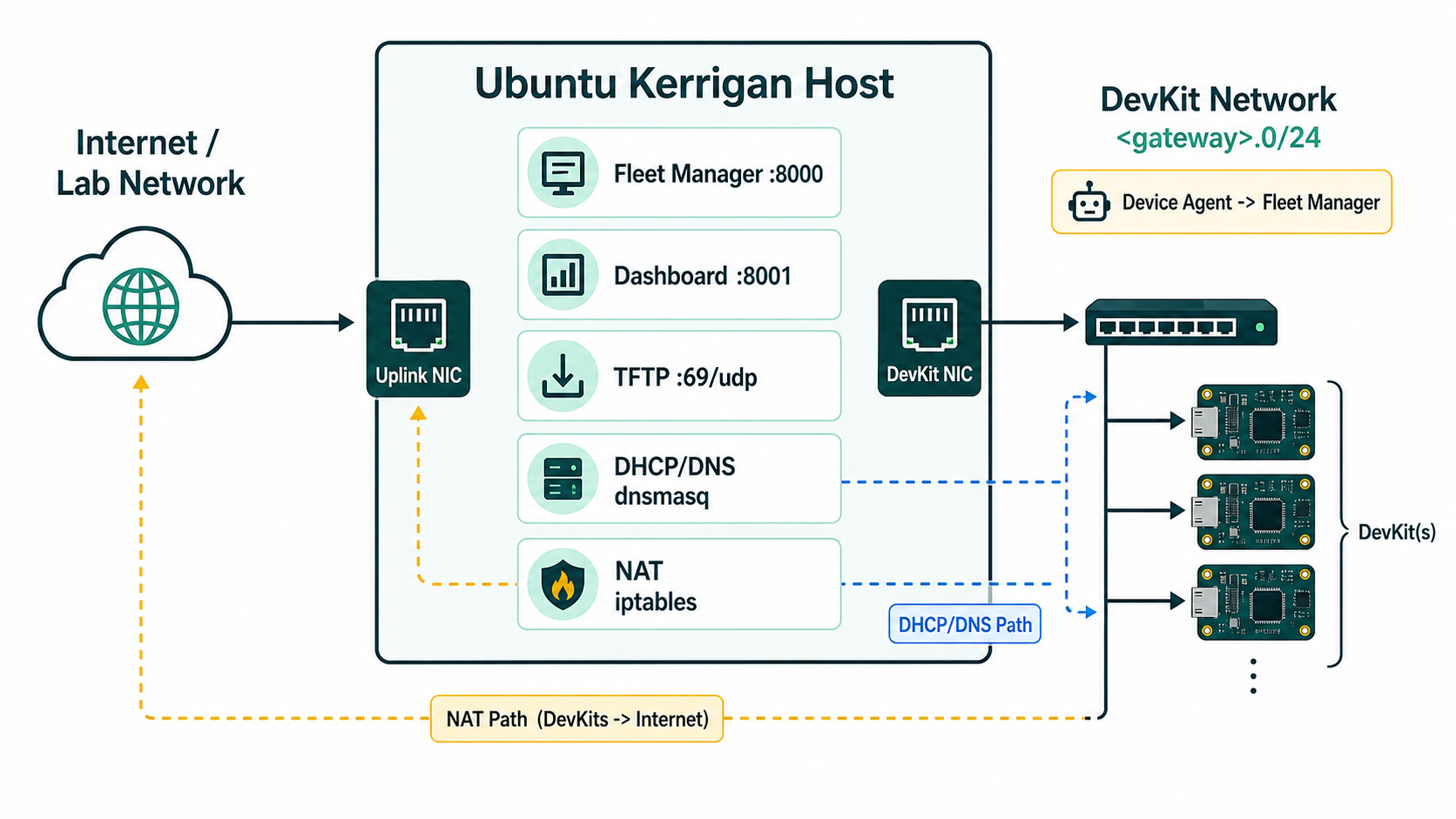
During setup, Kerrigan configures the DevKit-facing NIC with NetworkManager shared mode. That provides DHCP/DNS through dnsmasq, NAT through iptables, and a stable gateway address that DevKits use to reach Fleet Manager.
The DevKit network is a separate trust boundary. Setup installs a persistent firewall policy that rejects host SSH from the DevKit-facing interface and prevents DevKits from reaching private, link-local, special-use, multicast, and directly connected uplink networks. Internet forwarding remains available. Administrator SSH through the management interface and Kerrigan-initiated SSH to DevKits continue to work. When UFW is installed, Kerrigan records equivalent rules so a later UFW reload preserves the boundary. A NetworkManager dispatcher reapplies the direct rule ordering whenever a network connection comes up.
Designated internal destinations must be explicitly allowed. For example, set
KERRIGAN_DEVKIT_ALLOWED_EGRESS=10.20.30.40/32:tcp:2049 before setup to permit
NFSv4 to one server. Add routed corporate ranges that are not covered by the
built-in policy to KERRIGAN_DEVKIT_ADDITIONAL_PROTECTED_CIDRS.
Kerrigan services use these ports:
- Fleet Manager: TCP
8000 - Dashboard: TCP
8001 - TFTP: UDP
69 - Multicast discovery: UDP
45777
Hardware Requirements
Use a dedicated x86_64 or ARM64 Ubuntu machine for a physical DevKit cluster.
| Requirement | Minimum or recommendation |
|---|---|
| Architecture | x86_64 (amd64) or ARM64 (arm64) |
| CPU | 8 cores or more |
| Memory | 8 GB RAM minimum |
| Network | At least two 1GbE ports: one uplink, one DevKit-facing port |
| Supported OS | Ubuntu 24.04 LTS and Ubuntu 26.04 LTS |
| Container runtime | Docker Engine and Docker Compose plugin |
| Installer | sima-cli |
| Permissions | sudo access |
Kerrigan packages include Docker image archives and Compose configuration, but
the installer also ensures Docker Engine and Docker Compose v2 are available
on any supported dual-NIC Ubuntu host. During a full installation on the
official NanoPi R6S controller image, it also uses Docker's vfs storage
driver when the FriendlyElec root filesystem is OverlayFS; nested OverlayFS
cannot reliably unpack the packaged service images. This R6S-specific storage
configuration is not applied to other supported host hardware.
NetworkManager is also required for DevKit network sharing. The Kerrigan
installer can install NetworkManager automatically when nmcli is missing and
apt-get is available.
Installation Procedure
Install the Ubuntu host package matching the machine architecture with
sima-cli:
sima-cli neat install kerrigan/amd64@develop:latest
sima-cli neat install kerrigan/arm64@develop:latest
The installer:
- installs Kerrigan files under
/opt/kerrigan - installs
kerrigan-ubuntu-stackandkerrigan-ubuntu-setupinto/usr/local/bin - loads the packaged Docker images
- runs
kerrigan-ubuntu-setup - writes
/opt/kerrigan/.env - starts the Docker Compose stack
- offers to pair Kerrigan with a cloud environment and waits for backoffice approval when pairing is selected
For unattended setup:
KERRIGAN_HOST_SETUP_ARGS="--non-interactive" \
sima-cli neat install kerrigan/amd64@develop:latest
The setup helper detects the uplink, chooses a DevKit-facing interface,
configures shared networking, writes Fleet Manager URLs, enables bootstrap DHCP
hooks, and starts services. Cloud pairing is optional and does not make local
installation depend on cloud availability. Unattended setup skips it unless
KERRIGAN_PAIR_DURING_SETUP=1 is supplied; in that case
KERRIGAN_PAIRING_ENVIRONMENT selects the target and defaults to
vulcan-staging. If non-interactive setup sees only one usable NIC, it falls
back to host-only mode instead of trying to use the uplink as the DevKit
network.
For a CI runner or a machine without a second NIC:
KERRIGAN_HOST_ONLY=1 \
KERRIGAN_HOST_SETUP_ARGS="--non-interactive --host-only" \
sima-cli neat install kerrigan/amd64@develop:latest
Host-only mode is useful for API smoke tests and development, but it does not
provide DHCP, NAT, or DevKit bootstrap for physical devices. Use
kerrigan/arm64 instead on an arm64 host.
After Installation
Open the dashboard:
http://<host-ip>:8001/admin
Useful host commands:
sudo kerrigan-ubuntu-stack ps
sudo kerrigan-ubuntu-stack logs
sudo kerrigan-ubuntu-stack up
sudo kerrigan-ubuntu-stack down
Pair for the first time or replace the current cloud connection at any time:
sudo kerrigan-ubuntu-stack pair start --cluster-name <cluster-name>
sudo kerrigan-ubuntu-stack pair status
The first command presents the configured cloud environments, displays the activation code, and waits for backoffice approval. The existing connection remains active until an approved replacement is installed. You can perform the same operation from the Dashboard's Cloud page.
The generated host configuration lives at /opt/kerrigan/.env. See the
Configuration reference before changing service
addresses, registration policy, credentials, or timeouts.
SSH isolation is installed in two stages. An early kerrigan-devkit-ssh-guard
service rejects TCP port 22 arriving on the configured DevKit interface for
IPv4 and IPv6 before SSH sockets start. It does not require DHCP, routes or
NetworkManager. The full firewall service applies forwarding policy after the
network is online, and NetworkManager events reapply that policy.
Traffic arriving through the uplink or Tailscale interface is not rejected by this guard; existing host firewall policy and SSH authentication still apply. A DevKit cannot bypass the ingress rule by targeting another appliance address. The SSH service and socket require the early guard to start successfully. A missing firewall tool or invalid interface configuration therefore needs console recovery rather than silently exposing SSH to DevKits.
Check the firewall isolation service after installation or a host upgrade:
sudo systemctl status kerrigan-devkit-ssh-guard kerrigan-devkit-firewall --no-pager
sudo iptables -C INPUT -j KERRIGAN_DEVKIT_INPUT
sudo iptables -C FORWARD -i "$(grep '^KERRIGAN_DEVKIT_INTERFACE=' /opt/kerrigan/.env | cut -d= -f2)" -j KERRIGAN_DEVKIT_FWD
sudo ip6tables -C INPUT -j KERRIGAN_DEVKIT_INPUT
New installations configure and activate this policy automatically. After an existing appliance is updated to a package that contains the policy, apply it once from a management-network session or local console:
sudo /opt/kerrigan/current/scripts/system-patch.sh
Use the active-release path for this first update. The updater that performs
the update can predate system-patch.sh, so it cannot copy that new filename
to /opt/kerrigan/scripts until a later update.
If an existing installation needs NFS or another internal service, declare each exception while applying the patch:
sudo /opt/kerrigan/current/scripts/system-patch.sh \
  --allow 10.20.30.40/32:tcp:2049 \
  --protect 198.17.0.0/16
The patch persists these values in /opt/kerrigan/.env, installs its host
dependencies, blocks host SSH and protected uplink destinations, and verifies
that the service is active. The old patch_existing_kerrigan_devkit_ssh.sh and
patch_existing_kerrigan_devkit_firewall.sh entry points remain as
compatibility aliases and can locate the migration in
the active release when an older updater did not copy the new filename into the
stable scripts directory. A full reinstall is not required.
If the wrong interface was saved, use a local console or an existing
management-network session to correct KERRIGAN_DEVKIT_INTERFACE in
/opt/kerrigan/.env, then run:
sudo systemctl restart kerrigan-devkit-firewall
For emergency recovery from the local console, remove only Kerrigan's managed
rules with sudo /usr/local/lib/kerrigan/kerrigan-devkit-firewall remove.
Correct the configuration and restart the service immediately afterward.